Download your Amazon reports
Where to find the Date Range report and settlement reports in Seller Central.
Download either of these reports, then drop the file on the Uploads tab, or on the channel's Upload button during setup. You don't need to open or change it first.
Date Range report (transactions)
- Period
- Up to 365 days (1 full year), in one single CSV file.
- Format
- CSV
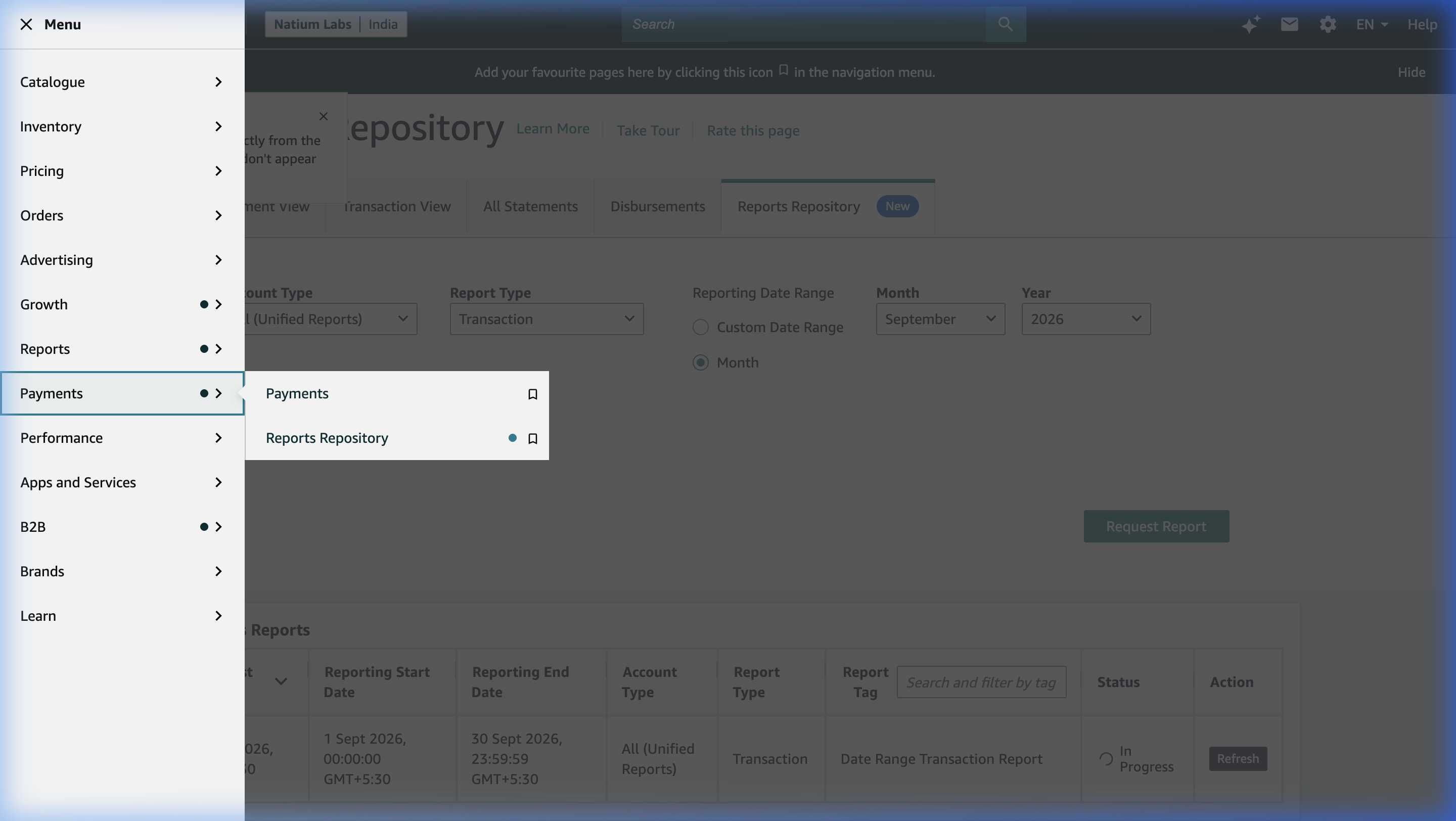
- Seller Central → menu → Payments → Reports Repository.
- Account Type: All (Unified Reports). Report Type: Transaction.
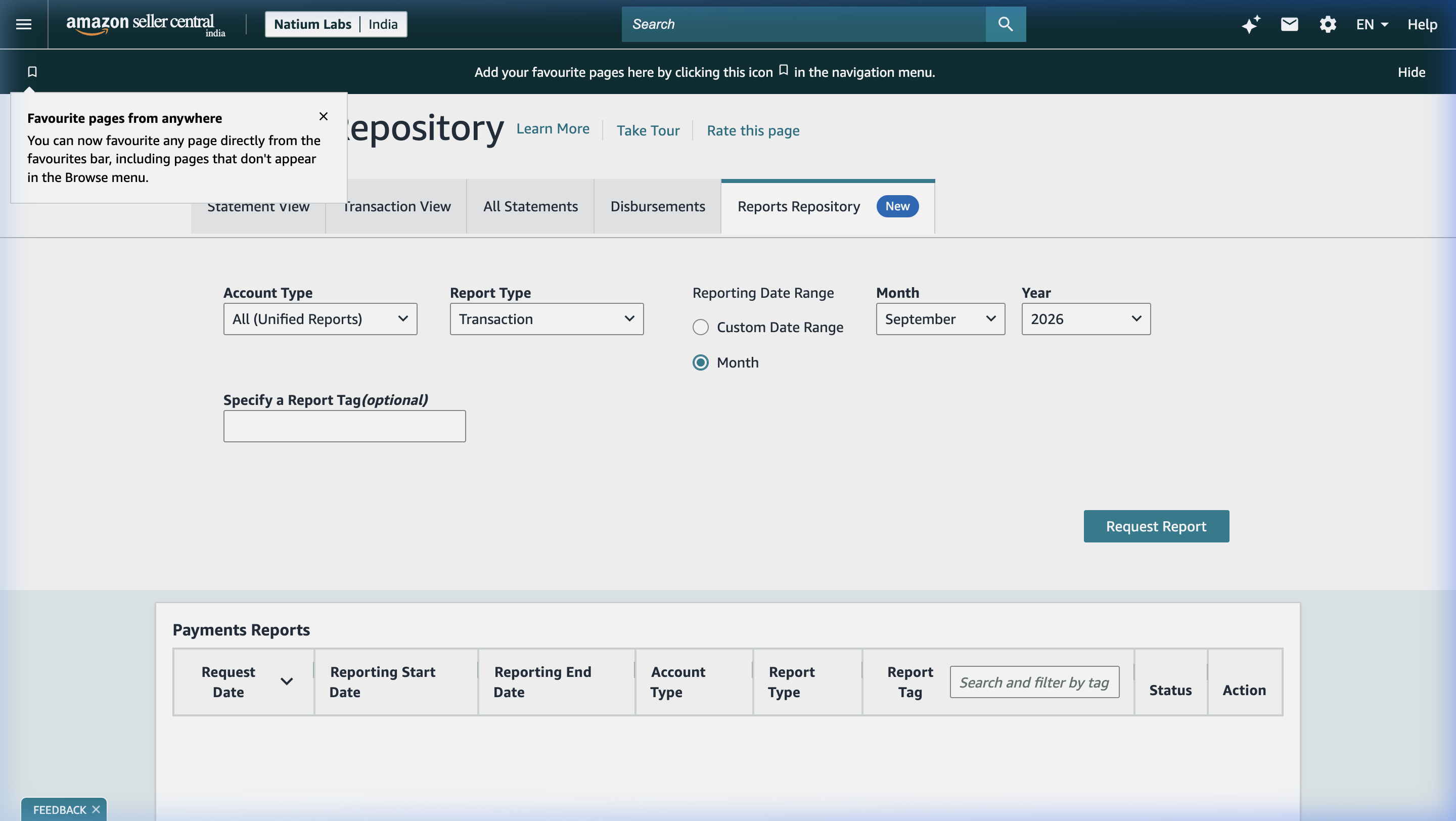
- Choose Custom Date Range (up to a full year) or a single month, then Request Report.
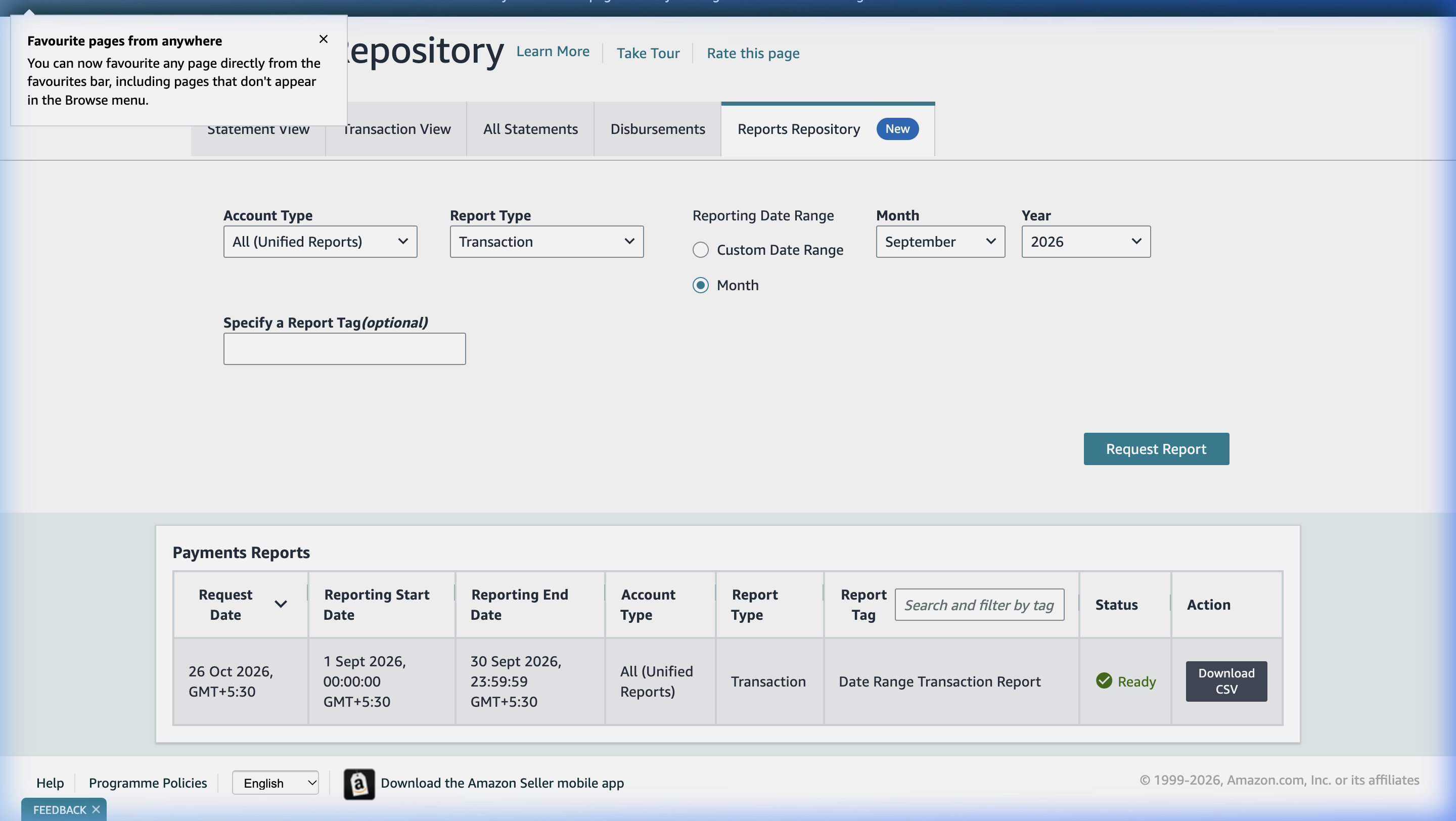
- When the status shows Ready, choose Download CSV.
One file covers your entire year of sales, returns, referral fees, closing fees, and delivery reserves.
Settlement report (flat file V2)
- Period
- Every settlement in the last 90 days (about six to seven files).
- Format
- Tab-separated .txt
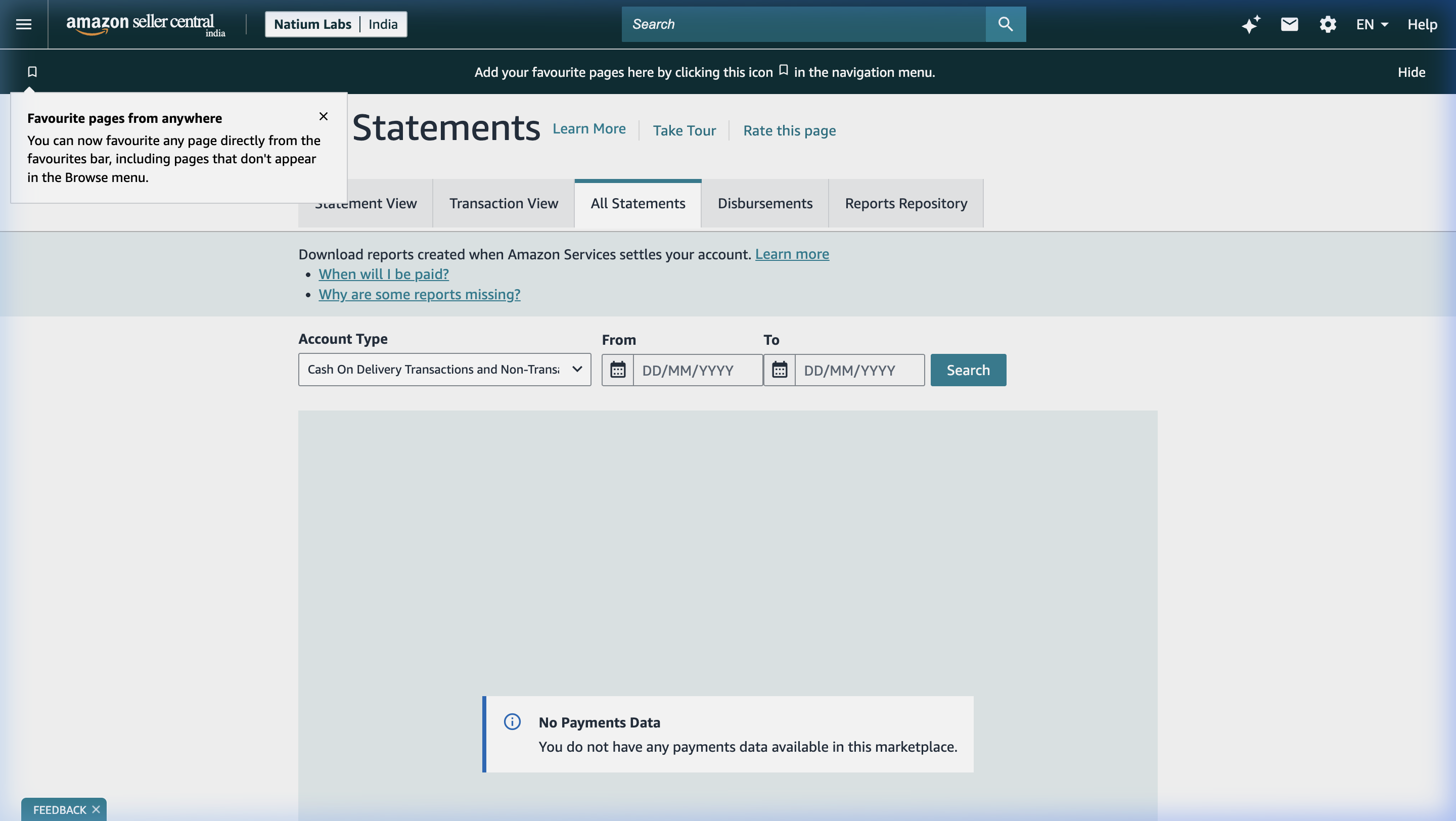
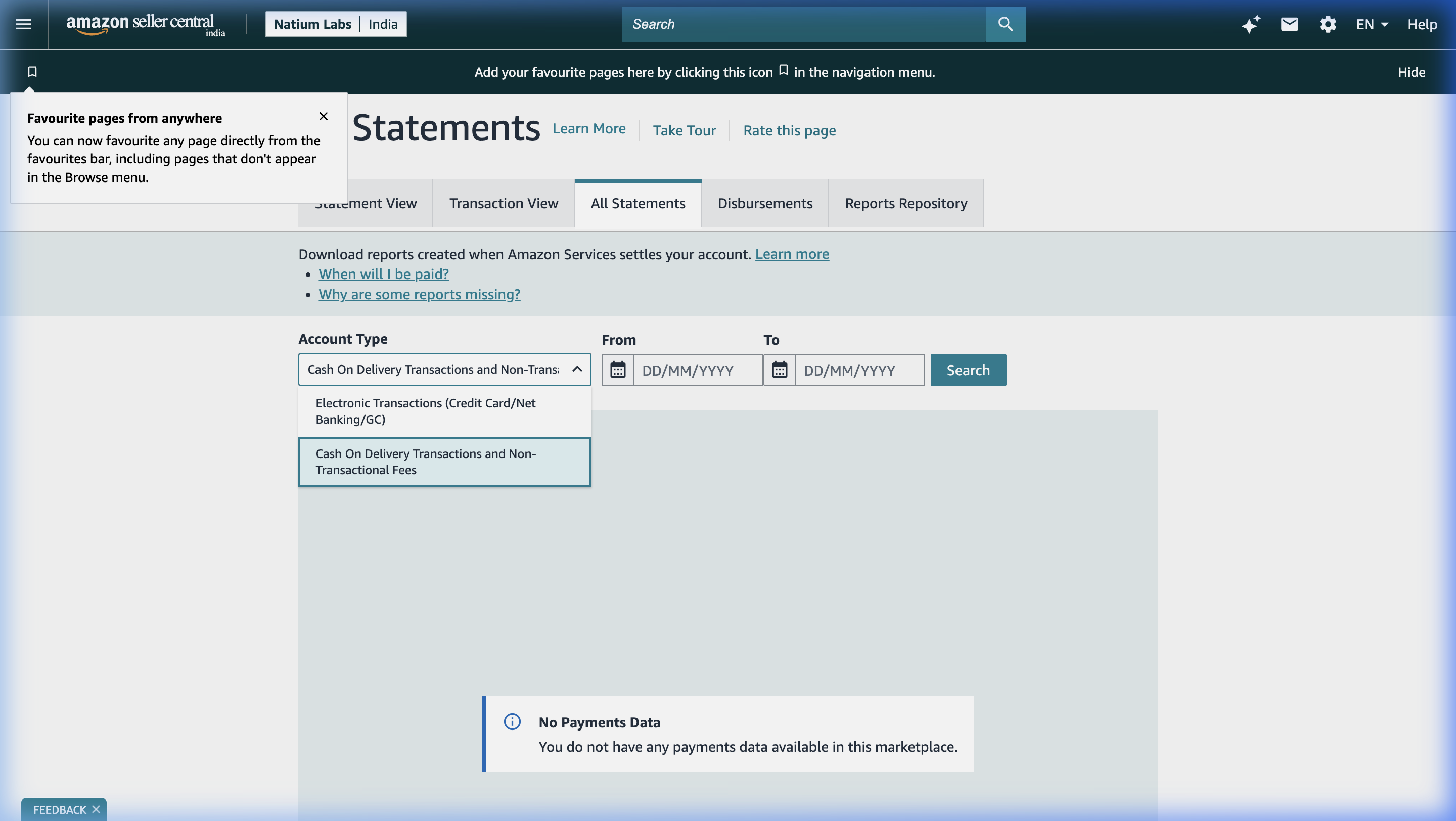
- Seller Central → Payments → All Statements.
- Pick the account type (Electronic Transactions, or Cash On Delivery Transactions) and the dates, then Search.
- For each settlement, choose Download Flat File V2. If it isn't ready, Request report first.
- Put the files in one folder and zip it, or drop them here together.
Don't open and re-save the file in Excel first: Excel can change long order ids.
Menu names are Amazon's own and sometimes change. If a step doesn't match what you see, look for the closest report under Payments or Reports, or write to us.
What the report holds, line by line, and how to check it: Settlement reports explained.
Free tools for this
- Settlement report checker · Drop a settlement or COD remittance report: see its totals and anything it shows short, read in your browser.
- Amazon fee calculator · Referral, closing and shipping fees, GST, TCS and TDS on an Amazon.in order.
Still stuck? Write to help@natiumlabs.com.
Checked 27 Oct 2026